LookAway
 LookAway
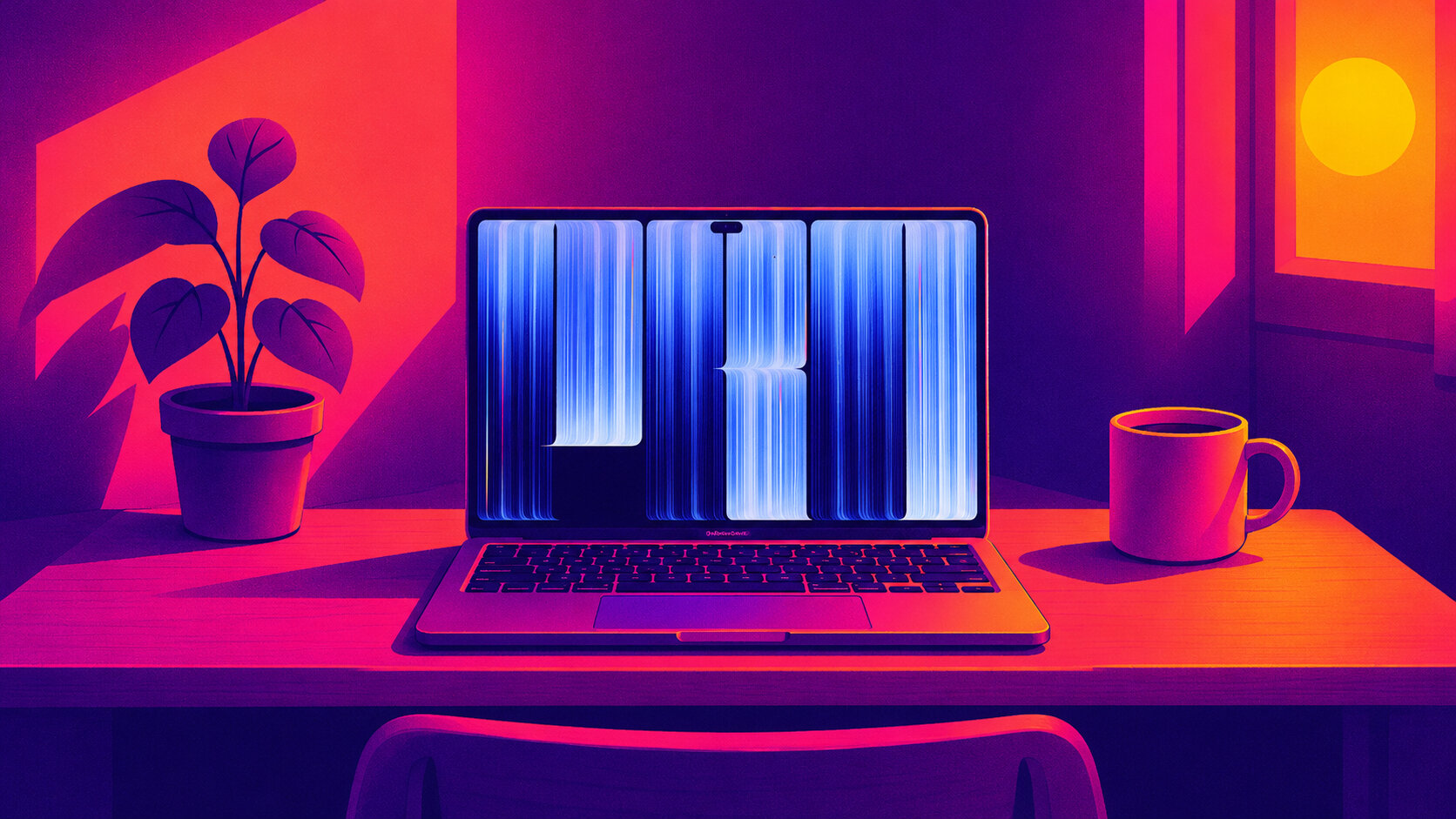
Apple's first OLED MacBook Pro started arriving on November 6, and the display reviews have been glowing. Notebookcheck called the 14-inch model's PROLED XDR panel the best display you can currently get in a laptop.
Within a week, owners were posting a different kind of review on Reddit and in a long MacRumors thread: the new machine was giving them headaches.
Their descriptions match closely. Their eyes get tired within the first hour, and a dull pressure builds behind the forehead. A few people mention dizziness or mild nausea. Most say reading text in dark mode is the worst of it, and some have already boxed the laptop up and gone back to their old mini-LED model.
Most of them blame PWM flicker. I make a break reminder app, so I spend a lot of time reading about why screens wear people out. Flicker is a genuine problem on this panel, but it is also easy to blame for headaches it did not cause, so the details matter.
What we know as of November 16, 2026. I will update this post if Apple responds or ships a change.
What PWM Is, and Why 240 Hz Is the Problem
A display can dim in two ways. It can lower the current going to the light source, which is called DC dimming, or it can switch the light fully on and off many times a second and vary how long each pulse stays on. The second method is pulse-width modulation, or PWM.
At half brightness, a PWM screen might be lit for half of every cycle and dark for the rest. Your visual system blends the pulses into a steady, dimmer image, and when the switching is fast enough almost nobody notices it. Slow it down and some people start to.
Notebookcheck's review of the 14-inch model measured flicker at 240 Hz with a 56% amplitude at every brightness setting from 99% down. It only disappears at 100%. The M4 Pro mini-LED MacBook Pro it replaces also uses PWM, but at 14,880 Hz, roughly 60 times faster. Notebookcheck concluded that sensitive users "will likely notice flickering and experience eyestrain."
Other testers have not found quite the same thing. Video creator Hugh Hou filmed the screen at a 1/8000 shutter speed and saw no flicker from full brightness down to about seven steps below it. Notebookcheck's own write-up also describes DC dimming at every brightness level, with the 240 Hz pulsing on top of it. The two tests used different equipment, so the exact brightness where flicker starts to matter is still unsettled. Nobody has disputed the 240 Hz figure itself.
The lighting industry's flicker guidance, IEEE 1789, gives a rough sense of where 240 Hz sits. It treats deep, full on/off modulation as low risk only above about 1,250 Hz. Below that, the allowed depth shrinks as the frequency drops, and at 240 Hz the low-risk limit is about 20% modulation. Notebookcheck measures amplitude a little differently, so I would not put much weight on the exact gap. This panel still sits well outside the low-risk zone.
Why you can feel flicker you cannot see
A 240 Hz flicker looks perfectly steady if you hold your gaze on one point. It starts to show when your eyes move.
When you read, your eyes make a constant series of small, fast jumps called saccades. As the eye sweeps across a flickering light, each pulse lands on a different spot on the retina, so a bright edge can leave a faint trail of repeated images. Researchers call this a phantom array. In one study from the University of Essex, people could tell flickering light from steady light during eye movements at an average of almost 2,000 Hz. A 2015 study on displays found the typical viewer could spot flicker artifacts at around 500 Hz when their eyes moved across high-contrast edges.
That fits the reports. Dark mode puts thin, bright letters on a black background, about as high-contrast an edge as a screen can draw. Watching video involves far fewer jumps across sharp text, and people complain about it much less.
Nobody has run a proper trial on this MacBook, so whether its flicker causes headaches is harder to prove. The best evidence comes from office lighting. In a 1989 double-blind study, swapping fluorescent lights that flickered at 100 Hz for high-frequency versions more than halved the rate of headaches and eye strain among office workers, and people already prone to headaches benefited most.
Office lighting is not a laptop, and 100 Hz is not 240 Hz. Results like that one are still the reason researchers take low-frequency flicker seriously, and they make it plausible that a minority of people react badly to this screen while most feel nothing.
Is It the Flicker, or Ordinary Eye Strain?
A new laptop usually means a long weekend of setup. You migrate files, reinstall apps, try every setting, and probably spend more hours looking at the screen than you normally would. That alone can give you tired eyes and a headache. Digital eye strain is common, and any display can cause it.
If you pay attention to when the symptoms show up, you can usually tell the two apart.
Flicker is the likelier cause if:
- Symptoms come on fast, within 20 or 30 minutes, rather than building through the day.
- They get worse at lower brightness, in a dim room, or in dark mode.
- You worked the same hours on your previous Mac without trouble.
- Some OLED phones or cheap LED bulbs have affected you the same way.
- The discomfort eases when you set brightness to 100%.
Ordinary strain is the likelier cause if:
- It builds slowly and peaks in the late afternoon.
- Your eyes feel dry, gritty, or burn, and things look slightly blurry when you look away. Those are signs you are blinking less than usual.
- A proper break away from the screen makes it fade.
- An external monitor gives you the same symptoms.
To find out which one you have, change one thing at a time. Turn off Automatically adjust brightness in System Settings > Displays, and in the Battery settings stop the Mac from dimming the screen on battery. Then spend one workday with brightness at 100% and one at your usual level, keeping everything else the same, including how often you take breaks. If the full-brightness day feels noticeably better, flicker is probably part of your problem. If both days feel equally bad, look at your setup and habits first.
What You Can Do Right Now
macOS has no setting to turn off PWM or switch this panel to DC dimming. The options below cut down how much of the flicker you see, and none of them remove it.
Keep brightness at 100%
That is the only setting where Notebookcheck saw no flicker. If Hou's result holds, staying near the top of the brightness range may be enough. Full brightness indoors is about 600 nits, which feels harsh in a dark room, so turn the room lights up instead of turning the screen down. Some PWM-sensitive people pair full hardware brightness with a software dimming utility that darkens the image while the panel stays at full power. As far as I know, nobody has tested that properly on this display, so treat it as an experiment.
Read in light mode
Light mode cuts down on bright edges sitting on black, the pattern people say bothers them most, and it makes 100% brightness feel less glaring. If you have used dark mode for years, our piece on whether dark mode is actually better for your eyes covers the trade-offs.
Move long work to an external monitor
Check the monitor's review before you buy. Notebookcheck and RTINGS both report whether a display uses PWM and at what frequency.
Tell Apple
Apple has not commented publicly. Its MacBook Pro feedback page is the official channel, and a complaint from many owners is harder to ignore than one from a few. Nobody outside Apple knows whether a software update can change how this panel dims.
Watch the return window
Under Apple's holiday return policy, eligible products bought from Apple and received between November 6 and December 25 can be returned until January 8, 2027. Other retailers set their own policies. Run your test well before the deadline.
If the headaches persist after you have tried these changes, or come with visual disturbances, see an eye doctor or your GP. Plenty of desk headaches have nothing to do with the screen, and our guide to headaches from computer work covers the other usual causes.
Where Breaks Help, and Where They Don't
I sell a break reminder app, so I should say this plainly: LookAway will not fix flicker. If your eyes react to 240 Hz, your options are full brightness, a different screen, or a return.
Breaks do help with the strain that piles on top of the flicker. Someone mildly sensitive to PWM who also stares at a new laptop for three hours without blinking properly gets both problems at once. Settings only touch the flicker, but resting your eyes regularly takes care of the strain. The 20-20-20 rule is the simplest version: every 20 minutes, look at something 20 feet away for 20 seconds.
Regular breaks also make the brightness test more reliable. If you take breaks at the same rhythm on both test days, they cannot explain any difference between them, and you can put that difference down to the screen.
Remembering those breaks when you are deep in work is harder than it sounds. I built LookAway to handle it.
LookAway reminds you at the interval you choose, gives you a short countdown, then dims and blurs the screen for the break. It holds reminders during meetings and videos and brings them back when you are free. You can also set separate reminders to blink or fix your posture.

Keep your breaks on schedule
With breaks at a steady rhythm, you can tell whether your eyes are reacting to your habits or to the hardware. Pay once, use forever.
Should You Return It?
Most owners will not notice anything. Flicker sensitivity varies a lot between people, and plenty of them use 240 Hz OLED phones every day without trouble.
If you do notice it, you are not imagining it. Notebookcheck has measured the flicker, and there is decent evidence that low-frequency flicker gives some people headaches. Run the two-day test with your breaks on a steady schedule so they do not muddy the result, and decide before January 8.
If you mostly work at full brightness in a bright room, you may be fine. If you work in dark mode at night with the brightness down, which is how a lot of people use a laptop, this may be the wrong screen for you until Apple says more.
Try LookAway
LookAway is a smart break reminder that helps reduce eye strain, digital fatigue, and maintain better posture - so you can end your day feeling fresh.