LookAway
 LookAway
Night Shift warms your Mac's display in the evening. You choose a schedule, macOS shifts the colors away from blue, and the screen returns to normal in the morning. It is Apple's version of the "eye protection" or "night light" setting found on other devices.
The setup takes about a minute. The more useful question is what to do with the schedule and warmth controls once you find them, and what Night Shift can realistically change. Think of Night Shift as an evening blue light control, not a general eye-strain setting.
How to Turn On Night Shift on a Mac
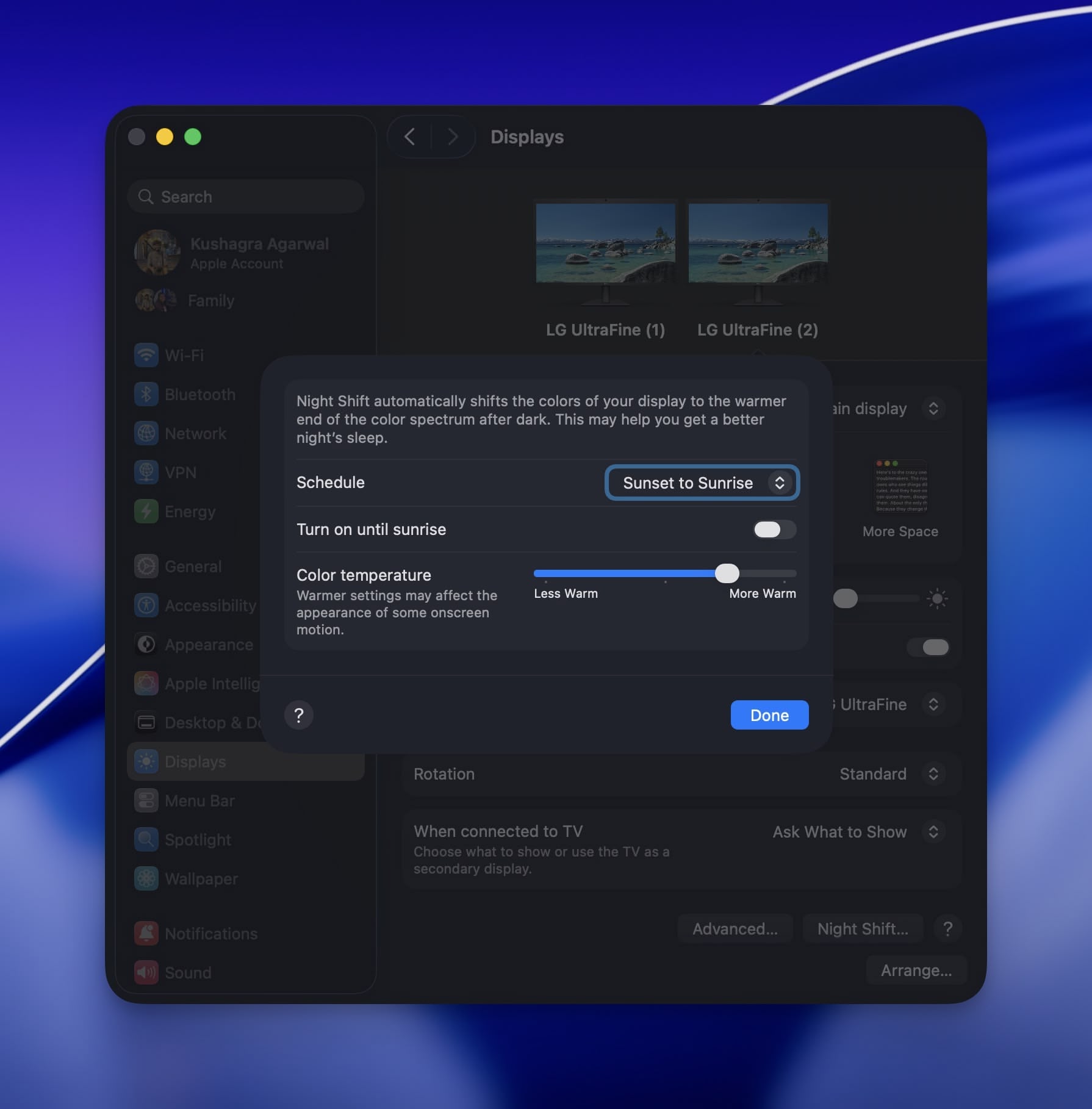
To set it up on a schedule:
- Open System Settings > Displays.
- Click Night Shift… at the bottom.
- Set Schedule to Sunset to Sunrise, or choose Custom and enter your own times, such as 10 PM to 7 AM.
- Move the Color Temperature slider toward More Warm until the display feels comfortable.
You can also switch it on without changing the schedule. Open Control Center from the menu bar, expand Display, and turn on Night Shift. That override lasts until the following morning.
Night Shift has been included with macOS since Sierra 10.12.4 and works on Macs from 2012 onward. Support for an external monitor depends on the display. Apple's support page has the current compatibility list.
The Night Shift Settings Worth Changing
There are only two controls you need to spend time on.
The schedule. Sunset to Sunrise follows local sunset times throughout the year. It is convenient, but it may start earlier or later than you want as the seasons change. Choose Custom if you keep regular hours or want the screen to warm at the start of your evening routine.
The warmth. The default tint is fairly subtle. Move the Color Temperature slider while looking at a white page, then stop when it feels comfortable rather than obviously orange. A position past the midpoint often works well late at night, but there is no correct setting you need to copy.
Night Shift changes color, not brightness. Lower the brightness separately if the display still feels too bright for the room.
It also does not change screenshots. A screenshot taken while the feature is on keeps its original colors, so it will look normal when someone else opens it.
For color-sensitive work, turn Night Shift off. Photo edits, video grades, and brand colors are difficult to judge through a warm display tint. You can switch it back on when that work is finished or schedule it outside those hours.
Night Shift vs True Tone vs Dark Mode
These three macOS display features are related, but they are not interchangeable:
| Feature | What it changes | When it helps |
|---|---|---|
| Night Shift | Warms the display on a schedule to reduce blue light | Evenings and nights, mainly for sleep and comfort |
| True Tone | Matches the display's white balance to the room | Throughout the day, so whites look natural |
| Dark Mode | Changes the interface to a dark color palette | Dim rooms where a bright interface feels uncomfortable |
You do not have to choose between them. True Tone and Dark Mode can remain enabled while Night Shift is active.
True Tone responds to the light around the Mac. Night Shift follows the time. Leaving both enabled is fine: one adapts the display to the room, while the other makes it warmer in the evening.
Dark Mode is a separate choice. It can reduce the amount of light coming from the interface in a dim room, but dark text on a light background is usually easier to read in bright conditions. Our guide to whether dark mode is better for your eyes goes into that trade-off.
These are only some of the display controls available in macOS. The full list is in how to turn on eye protection mode on a Mac.
Does Night Shift Actually Reduce Eye Strain?
Night Shift is more useful for sleep than it is for eye strain.
Evening blue light can suppress melatonin and shift the body clock, making it harder to fall asleep after a late session at the computer. A warmer display reduces that exposure. Some people also find the warmer color more comfortable in a dark room.
The evidence for eye strain is different. The American Academy of Ophthalmology says blue light from screens does not damage the eyes. A 2023 Cochrane review found no clear evidence that blue-light filtering reduces computer eye strain either. We covered the same research in whether blue light glasses actually work.
The usual causes of tired eyes are less exotic. You blink less while concentrating, hold focus at the same close distance for long stretches, and deal with glare or a screen that is too bright for the room. Warming the display does not address any of those directly.
That does not make Night Shift pointless. Use it in the evening for a more comfortable screen and less blue light before bed. For close-focus fatigue, take regular distance breaks. The 20-20-20 rule is simple: every 20 minutes, look at something 20 feet away for at least 20 seconds.
Remembering the break while you are absorbed in work is the difficult part. It is also the reason I built LookAway.
At an interval you choose, LookAway gives you a short countdown, then dims and blurs the screen for the break. It can hold reminders during meetings, videos, and excluded apps, and resume them when you are free. Separate reminders can prompt you to blink, adjust your posture, or drink water.

Night Shift for the evening, breaks for the day
LookAway reminds you to rest your eyes, blink, and fix your posture, and it stays out of the way during meetings and deep focus. Pay once, use forever.
Night Shift Not Working? Quick Fixes
Most problems come down to the schedule, Location Services, or display support:
- Sunset to Sunrise does nothing. Your Mac needs Location Services to calculate the local sunset time. Check System Settings > Privacy & Security, or use a Custom schedule, which does not depend on location.
- It turned itself off in the morning. This is expected. The Control Center switch is temporary and ends at sunrise or at the end of the schedule. Use a Custom schedule if you want the screen warm for a different part of the day.
- It is on, but the screen looks the same. Open the Night Shift settings and drag the Color Temperature slider farther toward More Warm. You should see the tint change while moving it.
- It does not affect an external monitor. Some third-party displays do not support the feature. Check the model against Apple's compatibility list.
- Colors look wrong for design work. Turn Night Shift off while working on anything color-critical, then switch it back on afterward.
If the settings look correct and the display still does not change, restart the Mac before troubleshooting further.
Conclusion
Night Shift is worth enabling if you use your Mac in the evening. Set a schedule that matches your routine, adjust the warmth until it is comfortable, and lower the brightness separately when the room is dark. Its best-supported benefit is reducing blue light before bed, not preventing eye strain. Night Shift has a narrow job, but it handles it well.
For tired eyes, the basics still matter more: appropriate brightness, a comfortable setup, and breaks from close focus. Our Mac eye strain guide covers the full setup. If remembering the breaks is the part that slips, download LookAway and let the reminder happen automatically.
Try LookAway
LookAway is a smart break reminder that helps reduce eye strain, digital fatigue, and maintain better posture - so you can end your day feeling fresh.